Rentvine Owner Portal Instructions
Welcome to our comprehensive guide for the Rentvine Owner Portal. Select the instruction set that matches your current needs.
Please select an instruction set below:
Rentvine Owner Portal Introduction and Making Owner Contribution
Watch Video Tutorial
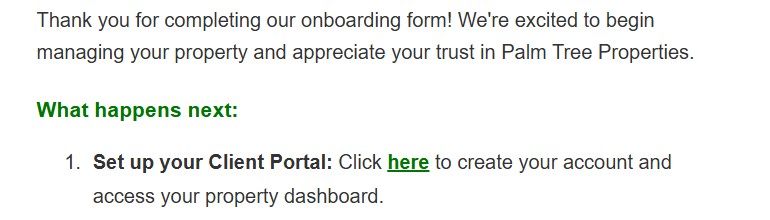
Click the link provided in the "Onboarding Form Received" confirmation email to begin the registration process.
Provide all required information in the registration form to create your account.
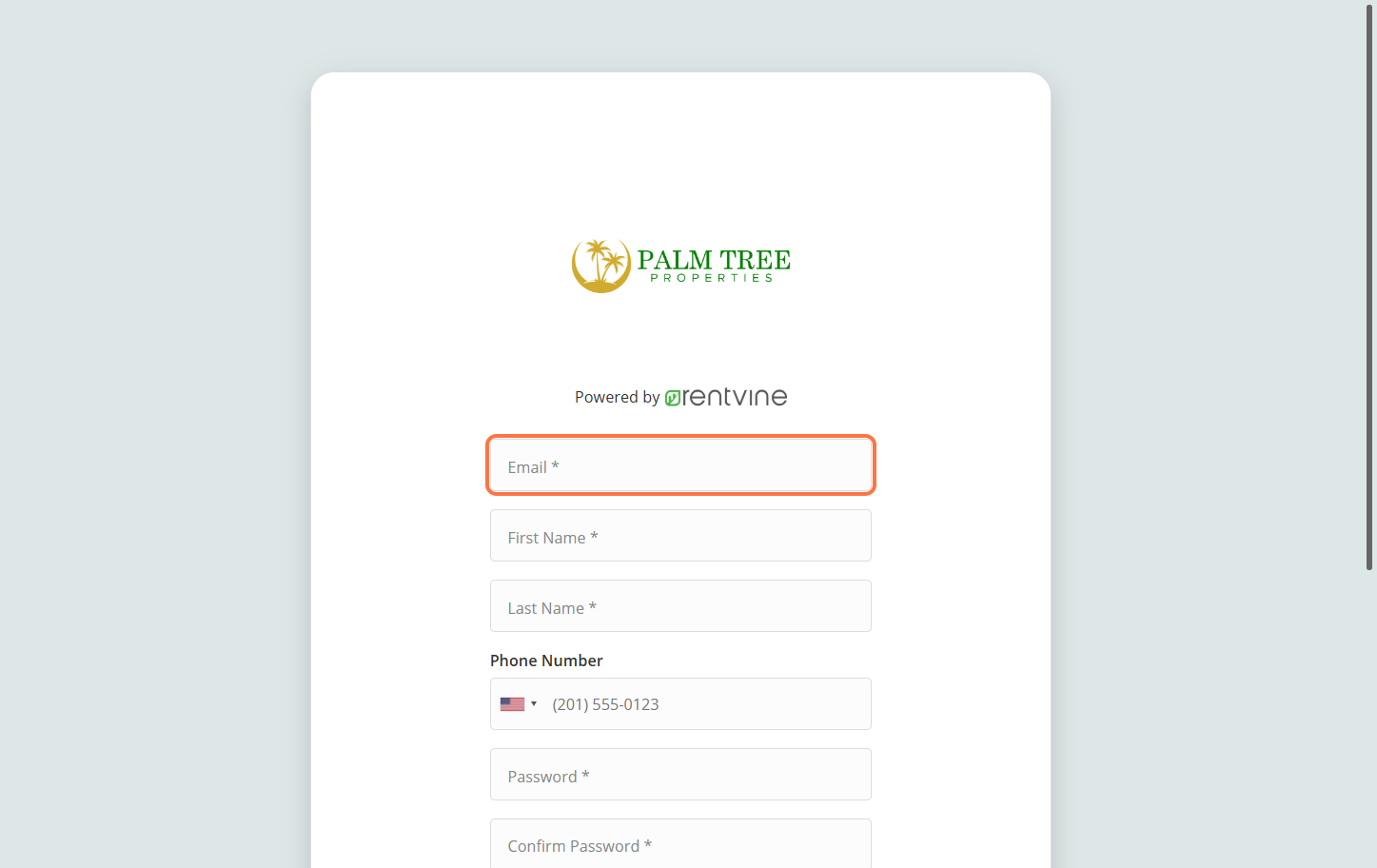
Click the "Register" button to complete your account creation.
Once logged in, you'll see the main dashboard of your Rentvine owner portal. Take a moment to familiarize yourself with the layout.
Navigate to the "Statements" section to view your monthly statements. You can view or download statements by clicking the corresponding action buttons.
Find important documents and files shared with you in the "Files" section.
View paid and unpaid bills and charges in the "Bills" section.
Navigate to "Chat" to reach out to your Property Manager. Simply type and send your message to start a conversation.
Navigate to the "Payments" section to make a contribution or save a preferred payment method.
Click on "SAVED PAYMENT METHODS FOR CONTRIBUTIONS" to set up a preferred payment method for future use.
In Actions, select "Add eCheck (ACH)" to enter your bank account information for easy contributions.
Click on "MAKE CONTRIBUTION" to initiate a one-time contribution to your property.
Choose your preferred payment method:
If using eCheck (ACH), enter your account information:
- Account number
- Routing number
- Account type (checking or savings)
In the MEMO field, provide details about what the contribution is for to help with record-keeping.
Enter the contribution amount you wish to make.
Toggle the confirmation switch ON and click "Submit" to complete your contribution.
Signing ACH and W-9 Forms in Rentvine
Watch Video Tutorial
Click on the link provided in the "Onboarding Form Received" confirmation email to access the form signing page.
Review the document information and click on "Accept & Continue" to proceed.
Review your signature and initials, then click on "Confirm & Continue".
Type your full name, address, email, and phone number in the designated fields.
Click on the Sign button to apply your signature to the ACH form.
Enter your bank information:
- Bank name
- Name on the account
- Routing number
- Account number
- Account type (checking or savings)
Carefully verify all banking information is correct before proceeding.
Click on the Sign button to finalize the ACH form section.
Enter your full taxpayer's name as it appears on your tax returns.
Provide your business name if applicable and if different from the taxpayer's name.
Specify your taxpayer type by selecting the appropriate option (Individual, Sole proprietor, Corporation, etc.).
Provide your complete address information.
Provide your Social Security Number (SSN) or Employer Identification Number (EIN):
- If providing an EIN, enter "N/A" in the SSN field
- If providing an SSN, enter "N/A" in the EIN field
Click on the Sign button to apply your signature to the W-9 form.
Click on the Submit button to finalize and submit both forms.
Warm regards,
Palm Tree Properties
